

 English
 Español
 中文
中文Conversion Notification URL for All Team Members
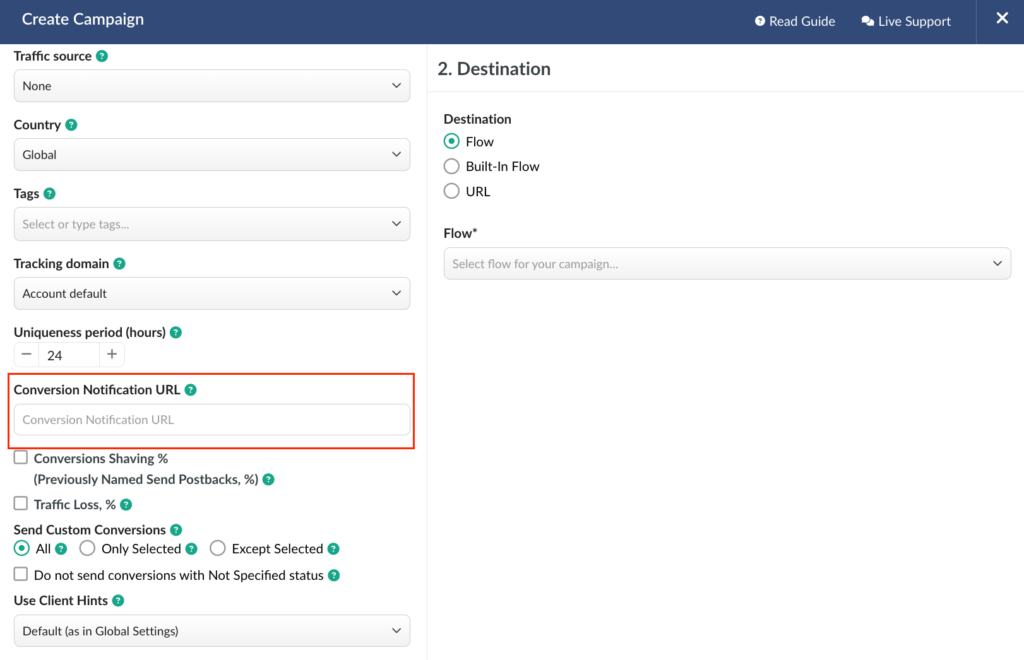
Admins and Users can now manage Conversion Notification URLs, making it easier for teams to build and maintain integrations without relying on the account owner.
Previously, only the Account Owner could configure a Conversion Notification URL. With this update, Admins and Users can now manage this setting as well.
This means the people responsible for integrations can configure and update conversion notifications themselves, without waiting for the account owner.
Why You’ll Love It:
- Let Admins and Users manage their own conversion notification settings.
- Set up integrations faster without involving the account owner.
- Make teamwork easier when multiple people manage campaigns or clients.
- Reduce delays caused by permission requests.
Workspace-Restricted API Keys
Generate API keys that can access only a specific Workspace for better security and easier integration management.
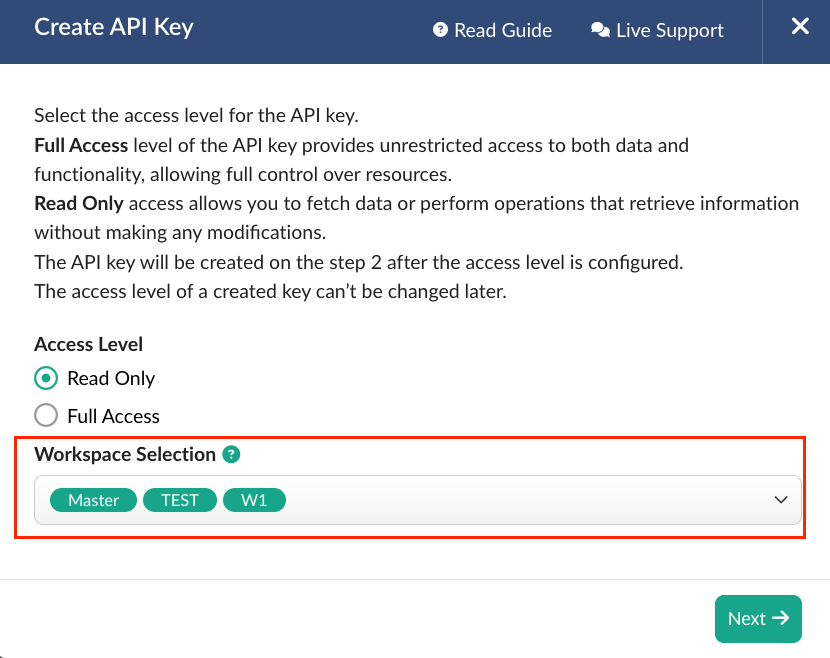
You can now create API keys that are restricted to a single Workspace.
Previously, every API key had access to all Workspaces within your account. Now you can create dedicated keys for each Workspace, giving every integration access only to the data it needs.
This is especially useful if you manage multiple clients, brands, or projects in separate Workspaces.
How It Helps
- Improve security by limiting API access to a single Workspace.
- Safely share API keys with team members and external services.
- Keep integrations organized across different clients and projects.
- Reduce the risk of accidental access to other Workspaces.
New Bot Filter Condition: External ID
Detect clicks without a click ID and automatically filter, redirect, or analyze traffic that cannot be matched by your traffic source.
We’ve added a new External ID condition to Bot Filters and Flow Rules.
Most traffic sources pass a click ID with every visit. If the click ID is missing, conversions often cannot be matched back to the original click.
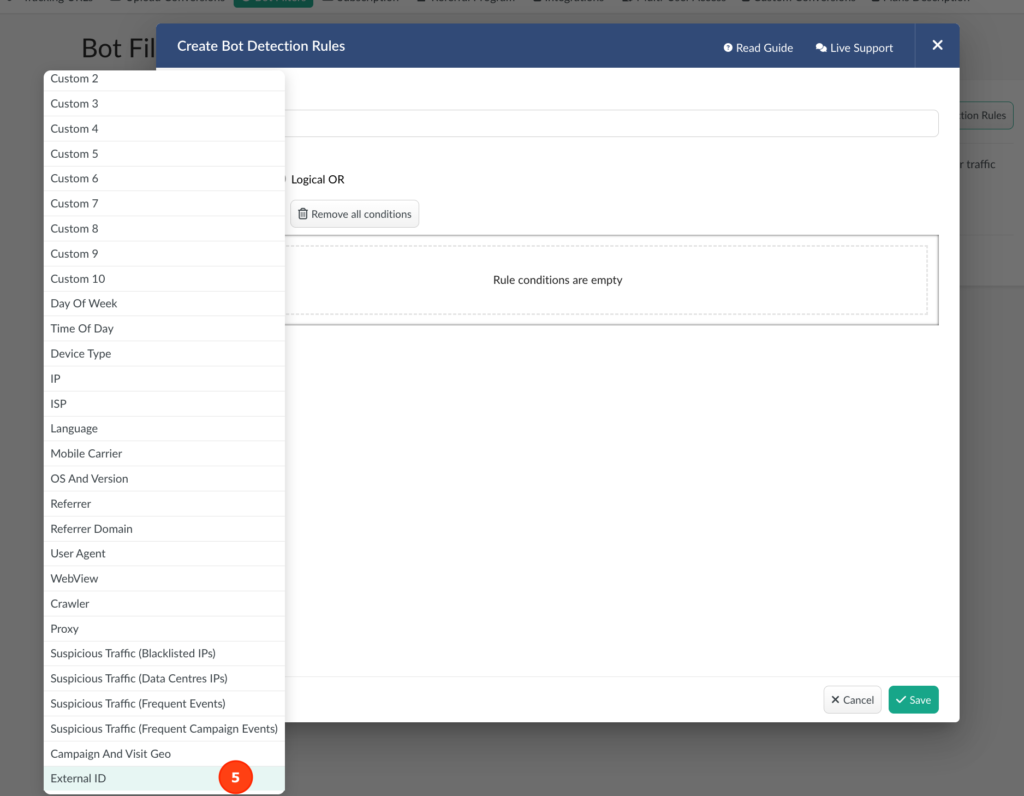
With the new External ID = Is Empty condition, you can automatically decide how to handle this traffic.
What you can do
- Mark it as bot traffic.
- Redirect it to another link.
- Exclude it from your campaigns and reports.
- Send it to a separate flow for analysis.
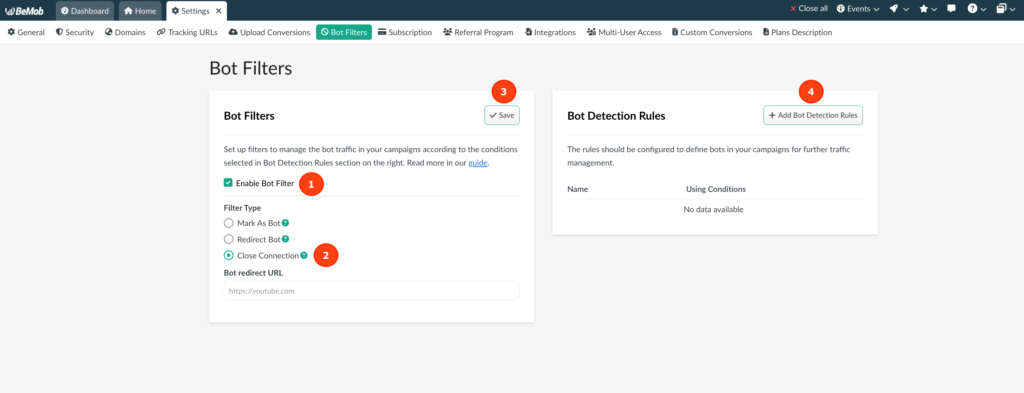
To configure it, open Bot Filters, add the External ID condition, choose Is Empty, and select the action you want BeMob to perform.
Combine External ID = Is Empty with Crawler and IP Data Center conditions to reduce low-quality traffic and improve campaign performance.
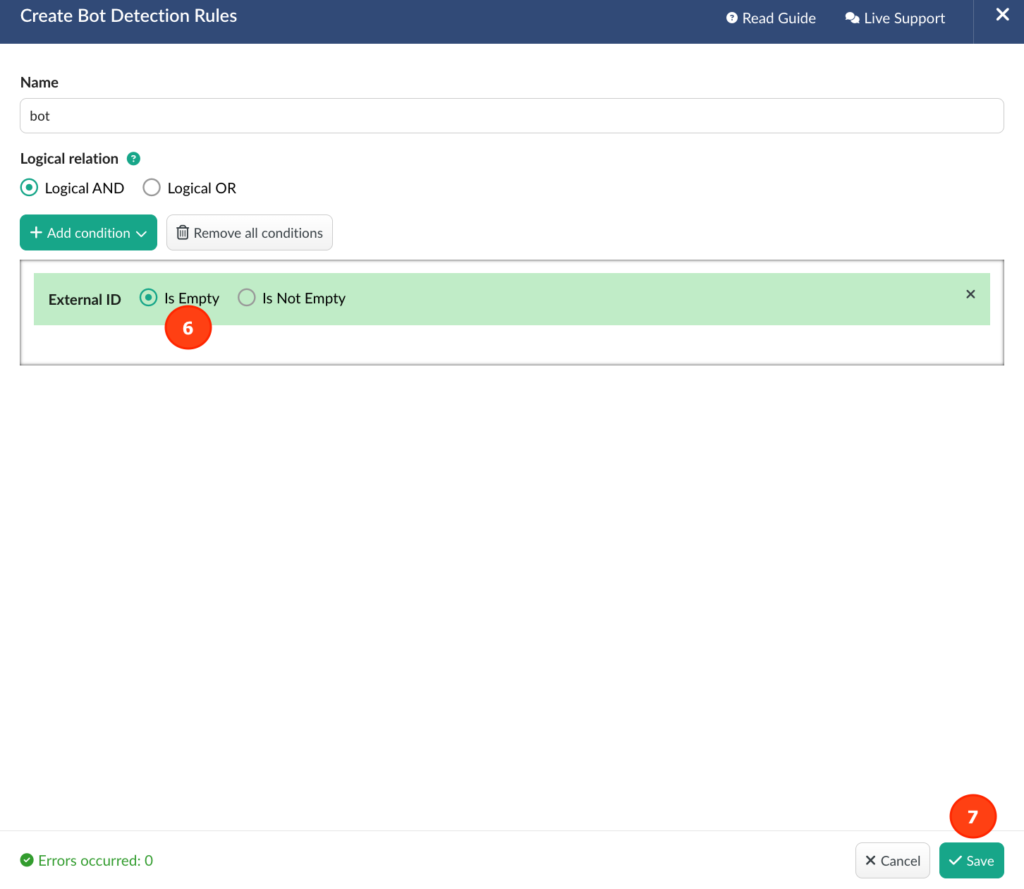
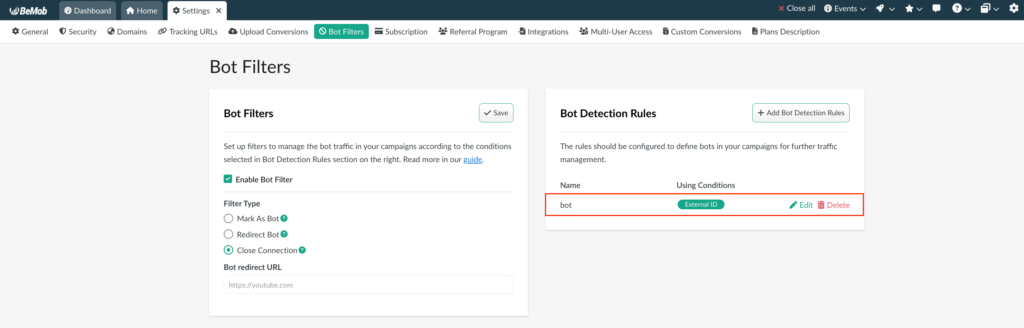
On the level of campaign settings you can choose how to distribute this type of traffic for further analysis.
Smarter Bot Protection with Optional Bot User-Agent Allowlist
BeMob now automatically blocks clicks coming from known bot and crawler User-Agents before they are recorded.
This helps keep invalid traffic out of your reports, preserves your tracking events, and improves the accuracy of your campaign statistics.
New Setting: Bot User-Agents Restriction
If you intentionally work with bot or crawler traffic—for example, for testing or certain integrations—you can now enable Allow Bot User-Agents in Settings.
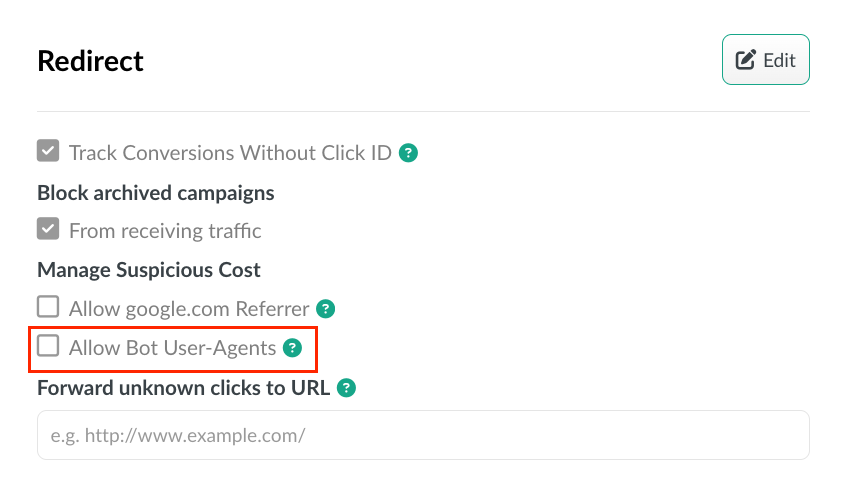
When enabled, BeMob will accept these clicks instead of blocking them.
Why It Matters
- Cleaner reports with less bot traffic.
- More accurate campaign statistics.
- Fewer tracking events wasted on invalid traffic.
- Full control when you need to allow bot User-Agents.
The protection is enabled by default, so most users will benefit immediately without changing any settings.
📩 We highly appreciate your feedback and feature requests.
Feel free to reach us via Live chat from the panel or website and at support@bemob.com